A Mature MODBUS Host Computer Software (MThings) — Permanently Free, Bilingual, Configuration, Alarms, Historical Storage, Gateway
Disclaimer:
We have applied for trademark registration with the National Trademark Office, and have filed multiple invention patents and software copyrights with the National Intellectual Property Administration.
Notes:
A.
MThings is different from ordinary serial/network debugging tools or similar host computer software.
It requires basic knowledge of the Modbus standard and networking. It is strongly recommended to skim through the entire document before use.
B.
The software includes a built-in User Manual. Press F1 after opening the software.
1 Overview
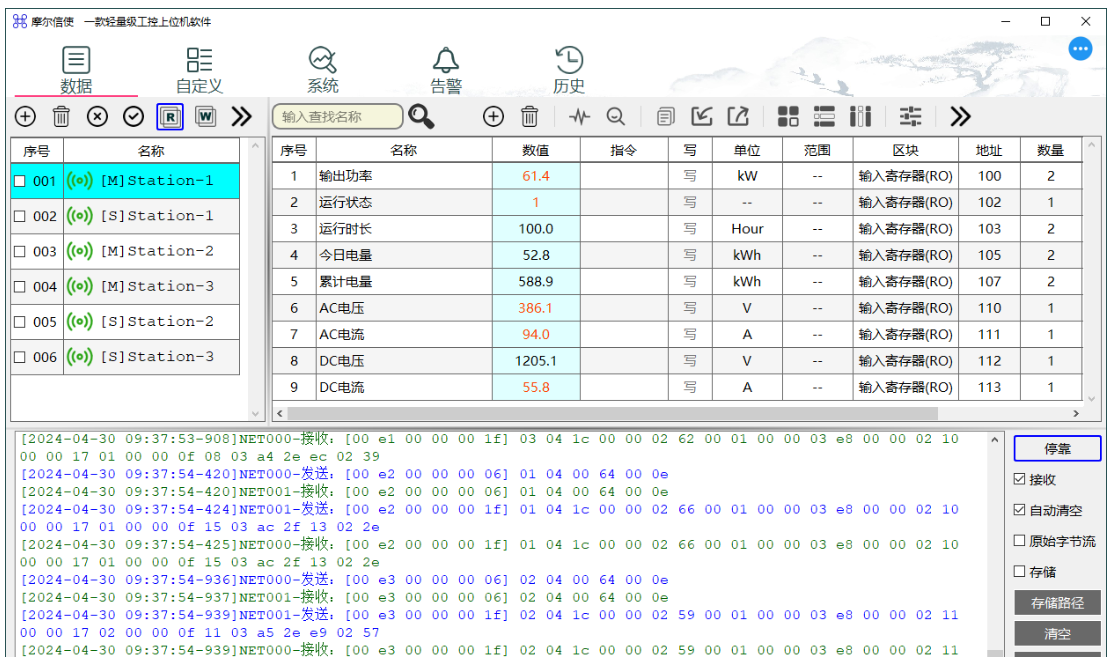
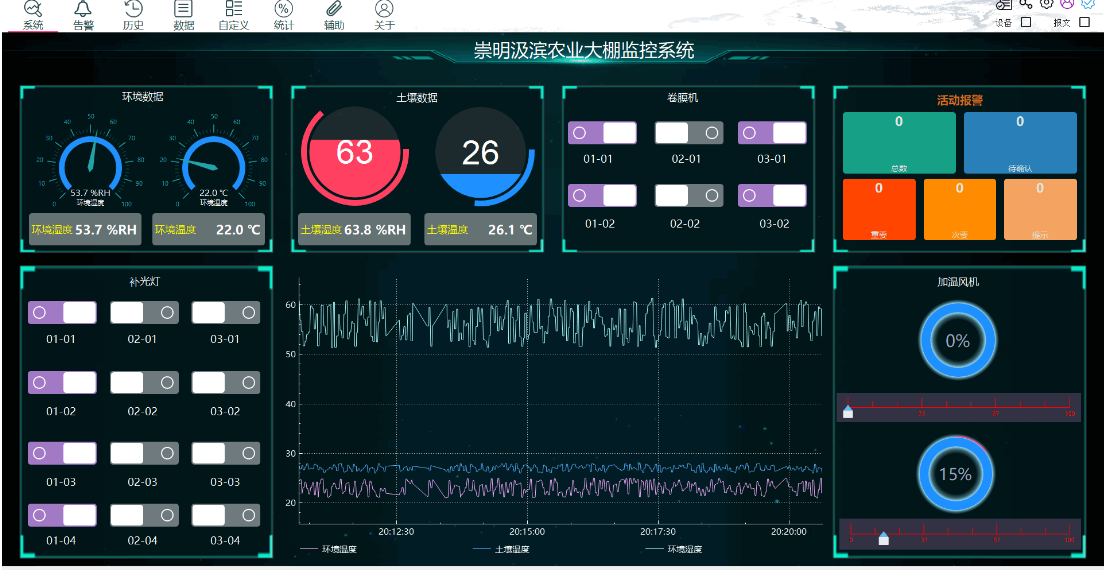
MThings is a brand-new standardized professional MODBUS host computer software that provides integrated master/slave operation.
It can be used for debugging and testing of MODBUS protocol interfaces, as well as Modbus device operations and maintenance.
2 Data
The MODBUS protocol is a relatively simple bus protocol.
The interaction flow and message conventions can be clearly understood from the "Modbus Application Protocol V1_1b3" specification.
Here we present our understanding of data blocks and data definitions, which are frequently subject to ambiguity.
2.1 Data Blocks
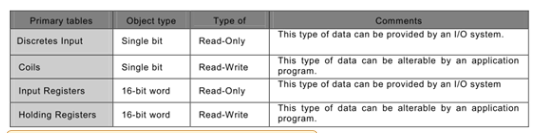
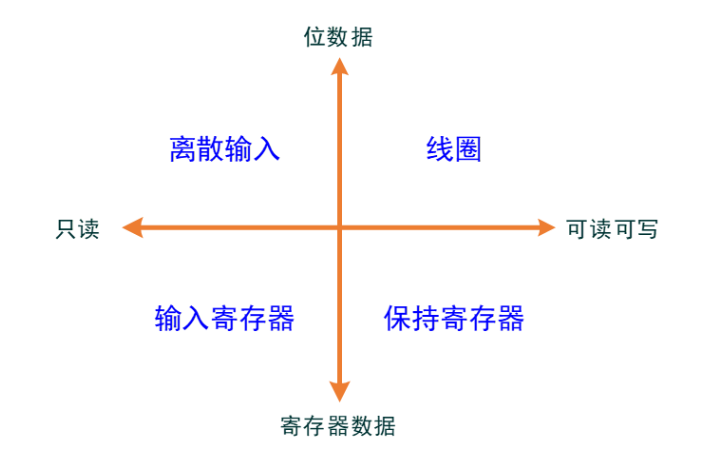
The protocol defines 4 types of data blocks. Based on data types, they can be categorized into two classes: BIT data and register data. Combined with read/write attributes, the relationships between data blocks are shown in the figure below:
2.2 Data
Data refers to the detailed definitions of specific information within a data block. Data definitions in different data blocks are independent of each other.
A single data definition can contain multiple consecutive BIT/REG data points.
The main attributes that describe data include:
@ Associated data block
@ Data name
@ Data address
@ Data quantity
@ Data type (protocol type)
@ Data coefficient (involved when floating-point data is transmitted as integers)
@ Byte order (involved for register data)
@ Word order (involved when register data quantity >= 2 Words)
@ Within the same data block, the data address + data quantity of different data definitions must not overlap;
@ Data in any data block is readable and writable on the slave side;
@ Data in different data blocks can point to the same data object on the slave side, having two different data block addresses. The difference lies in opening different read/write permissions through this variation;
@ The minimum data quantity for REG data is 1, and the maximum must not exceed the limit (Input Registers: 125, Holding Registers: 123);
@ The data quantity for BIT data is fixed at 1, representing 1 Bit, and the data coefficient attribute is disabled;
2.3 Relationship Between Data Blocks and Data
@ Within the same data block, the data address + data quantity of different data definitions must not overlap;
@ Data in any data block is readable and writable on the slave side;
@ Data in different data blocks can point to the same data object on the slave side, having two different data block addresses. The difference lies in opening different read/write permissions through this variation;
@ The minimum data quantity for REG data is 1, and the maximum must not exceed the limit (Input Registers: 125, Holding Registers: 123);
@ The data quantity for BIT data is fixed at 1, representing 1 Bit, and the data coefficient attribute is disabled;
2.4 Transport Type and Presentation Type
MThings provides a user-friendly data visualization method, supporting the display of message data in actual business format.
The transport type is the type defined in the MODBUS data protocol, typically integer-based,
but often not the actual data format. Users need to recalculate to confirm data correctness. Unintuitive debugging data undoubtedly severely impacts testing efficiency and accuracy.
MThings allows users to specify the transport type and presentation type for each data item.
During debugging, the software automatically converts according to the configuration, and the data presented on the interface will be the true content of the data.
For example, when a slave reports a voltage of 10.5V, the register transmits the data as 0x0069.
After MThings receives the data, it multiplies the integer by a coefficient of 0.1, and the interface displays the restored value of 10.5V.
When entering data configuration, MThings provides four configuration parameters: transport type, presentation type, coefficient, and unit. Their meanings are as follows:
| Parameter | Description |
|---|---|
| Transport Type | Signed integer (INT), unsigned integer (UINT), floating-point (FLOAT), byte stream (BYTES), bit data (BIT) |
| Presentation Type | Decimal integer (INT-DEC), hexadecimal integer (INT-HEX), floating-point (FLOAT), byte stream (BYTES), string (STRING), epoch seconds (TIME), enumeration (ENUM) |
| Coefficient | If the presentation type is floating-point and the transport type is integer, a coefficient is required. The software automatically multiplies the received data by the coefficient to convert it to floating-point for display. |
| Unit | Auxiliary data description, displayed directly on the interface |
3 Feature Introduction
3.1 Interface Layout
Main Menu: Used to switch between "main function pages".
Device List: Assists the "Main Menu". Users can click a device name to switch the currently active device and specify which device the new "main function page" belongs to.
More Functions: Serves as the entry point for configuration file operations, channel management, system parameters, user management, license management, and other functions.
Message Monitoring: View and manage communication messages for each link.
Main Function Page: Corresponds to the "Main Menu", providing the main function operation interface.
3.2 Configuration File Management
The configuration file contains complete MThings usage process configuration information,
mainly including: channel list, channel parameters, device list, device advanced parameters, and data configuration.
New Configuration: Creates a new project configuration file. For first-time use, creating a new configuration is not required; MThings will prompt for configuration storage before exiting.
Open Configuration: Switches project configuration files through the import function.
Save As Configuration: Exports a copy of the current project configuration through the "Save As" operation, and switches the current project configuration file to the new path.
Save Configuration: Saves the project configuration file to disk immediately.
3.3 Channel Management
MThings software supports establishing communication with target devices via serial port, TCP connection, and UDP unicast.
These three communication methods are collectively referred to as channels. A channel is a key attribute of a device. The channel determines the device communication method and is a prerequisite for creating a device.
3.4 Serial Channel
Access the channel management page via "Channels" in the auxiliary menu to view the list of serial ports actually present on the current PC.
After MThings starts, it automatically updates the serial port list once.
As shown in the figure above, the serial port related operations are as follows:
Select the link type filter for the channel list. The interface defaults to all types. After switching to "Serial Channel", only serial channels are retained in the list.
After the software is started, insert a USB-to-RS485 module and click "Refresh" to add the new serial port to the list. If the new serial port does not appear, please check the module driver. When an invalid serial port appears in the link list (serial port does not exist and has no attached devices), click "Refresh" to remove these serial ports from the data configuration.
To modify detailed serial port parameters, click the "Configure" button to enter the "Serial Port Parameter Configuration" page.
View the channel status. Channel status meanings are as follows: Closed, Connected, Fault.
Manually open or close the serial port. No manual opening is required before adding devices. Manual mode can be used to batch-control all devices attached to a link, starting or stopping them.
Serial Channel Status Definitions
| Channel Status | Description |
|---|---|
| Closed | The software has not enabled the serial port or it has been manually closed |
| Connected | The software has successfully opened and initialized the serial port |
| Fault | The software failed to open the serial port. The reason may be that the serial port is occupied by other software or the configured serial port parameters are invalid |
Serial Link Parameter Definitions
| Parameter | Description |
|---|---|
| Channel Name | Assigned by the operating system, not modifiable |
| Transport Mode | Specifies the transport protocol type running on the current serial port. Options: "MODBUS-RTU" or "MODBUS-ASCII" |
| Character Type | When the transport mode is "MODBUS-ASCII", this parameter specifies whether protocol characters use uppercase or lowercase. Defaults to uppercase as required by the standard protocol |
| Baud Rate | Supports 1200, 2400, 4800, 9600, 19200, 38400, 57600, 115200 bps. Setting other values will cause serial port opening to fail |
| Parity | Specifies the data parity method for serial bytes |
| Data Bits | Specifies the number of data bits in serial byte data. For example, when the MODBUS-ASCII protocol requires 7-bit data, modify this parameter |
| Stop Bits | Specifies the stop bit length in serial bytes |
| Flow Control | Defaults to no flow control. Modify as needed for actual applications |
3.5 Network Channel
Access the channel management page via "Channels" in the auxiliary menu to view the network channel list.
On first use, there are no network channels; users need to create them as needed. As shown in the figure above, the network-related operations are as follows:
Click the "Add Network Link" button to create a new network channel.
Click "Remove Network Link" to delete the selected network channel(s) from the channel list.
Network channel parameter configuration page.
Network Channel Status Definitions
| Channel Status | Description |
|---|---|
| Closed | The software has not enabled the link The link was disconnected by the remote end The link was manually closed |
| Connected | The network channel has been successfully established |
| Connecting | TCP Client: Connecting to the server TCP Server: Waiting for client connections |
| Fault | TCP Server: Local port is occupied UDP Unicast: Local port is occupied Serial: The serial port is already in use by other software |
Network Channel Parameter Definitions
| Parameter | Description |
|---|---|
| Channel Name | Assigned by MThings, not modifiable |
| Link Mode | Selects MThings' link role at the network layer. Options: TCP Client, TCP Server, UDP Unicast |
| Reconnection Period (seconds) | When the link mode is "TCP Client", setting the reconnection period instructs MThings to re-establish the link at specified intervals, simulating short connections. Default period is 0, representing a persistent connection. |
| Link Idle Timeout (seconds) | When the link mode is "TCP Client" or "TCP Server", after the link is established, if there is no data interaction within the specified time, MThings will actively close the link. |
| Transport Mode | Specifies the transport protocol type running on the current link. Options: "MODBUS-RTU", "MODBUS-ASCII", "MODBUS-TCP (Synchronous)", "MODBUS-TCP (Asynchronous)" |
| Character Type | When the transport mode is "MODBUS-ASCII", this parameter specifies whether protocol characters use uppercase or lowercase. Defaults to uppercase as required by the standard protocol. |
| Local IP | Specifies the local originating IP. Can be left unconfigured; MThings can automatically select the optimal one. |
| Local Port | When the link mode is "TCP Server" or "UDP Unicast", the local port to bind must be specified. When the link mode is "TCP Client", this parameter is read-only, displaying the local originating port number in the connected state. |
| Target Domain/IP | When the link mode is "TCP Client", this parameter specifies the server's domain name or IP address. When the link mode is "UDP Unicast", this parameter specifies the IP address of the data recipient. |
| Target Port | When the link mode is "TCP Client", this parameter specifies the port number bound by the remote (server) end. When the link mode is "UDP Unicast", this parameter specifies the receiving port number of the data recipient. |
| Client IP | When the link mode is "TCP Server", this parameter specifies the client IP allowed to connect to the current server. Connection requests from other IP addresses will be filtered and discarded. If filtering is not needed, set this parameter to "--" or clear it. |
| Source Port | When the link mode is "TCP Server", this parameter is read-only, displaying the originating port number of the connected client. |
| Max Concurrent Requests | When the transport mode is "MODBUS-TCP (Asynchronous)", this parameter controls the asynchronous concurrency scale, adjusting the number of concurrent requests. |
3.6 System Parameters
The system parameters page provides global control parameters for MThings software. Users can modify them at runtime with immediate effect, and parameter values are saved locally.
System Parameter Definitions
| Parameter | Description |
|---|---|
| Language | Switches the software language. |
| Auto Start | Function switch that controls whether MThings starts automatically with the operating system. Disabled by default. |
| Data Page Refresh | Function switch. To avoid wasting CPU resources, after the user enables the "System" page for data viewing, this switch can turn off data updates on all device "Data" pages. However, it does not affect data reception, parsing, or storage. |
| Run Mode | Supports Desktop or PAD mode for better display on different terminal devices. |
| Hide Main Menu | Supports hiding or showing the main menu to expand the configuration canvas. After hiding the main menu, the "More Functions" button will be automatically hidden. To show this button, click the upper-right area. |
3.7 Custom Menu
The custom menu feature allows users to customize the page content to be displayed and its arrangement order.
A simplified main menu helps reduce software resource usage.
Quickly switch between two preset main menu combinations;
To customize a menu combination, first clear the existing menu;
Display the currently selected menu content to be shown;
Click to select the menu items to display. The click order affects the menu arrangement order.
3.8 User Management
The user management page provides two user types: Administrator and End User.
Administrators can execute all functions provided by MThings. End users are only allowed to operate partial functions; debugging functions are not displayed, and they are prohibited from modifying device data, alarms, system configurations, etc.
User Permission Assignment
| Page | Administrator | End User |
|---|---|---|
| System Page | ✔ | ✔ |
| Historical Data Page | ✔ | ✔ |
| Alarm Data Page | ✔ | ✔ |
| Logic Control Page | ✔ | ✔ |
| Data Page | ✔ | ✔ |
| Custom Page | ✔ | ✘ |
| Statistics Page | ✔ | ✘ |
| Auxiliary Page | ✔ | ✘ |
| About Page | ✔ | ✔ |
Administrators have no password by default.
On first use of MThings, the default is a no-password administrator. Administrators can change their own password.
Once an administrator sets a non-empty password, MThings will log in as an end user after restart.
Users need to manually enter the administrator password to switch to administrator user.
3.9 License Management
For commercial (paid) features in MThings, users need to obtain a license before use.
Before purchasing a license, users need to enter the license management page to generate a machine identification code.
After obtaining the license certificate, enter the license management page to import the license certificate and activate commercial features.
The license certificate is limited to one PC. To extend to multiple PCs, additional licenses must be purchased in advance.
Click to automatically generate a unique machine code, which can be used to purchase a license certificate;
Contact customer service for payment to obtain the license certificate;
After obtaining the license certificate, click this button to import the license certificate.
Warning: Reinstalling the operating system, replacing disks, and other actions may change critical system identification information, causing the license to become invalid. A new license must be purchased.
Operating systems that cannot properly retrieve critical system identification information will be unable to generate a machine code, and therefore cannot obtain a license.
4 Device Management
A device is a local mirror or service object of the communication target device. Devices are the foundation for all MThings functions.
Through this device integration approach, MThings gains the capability for multi-device, multi-protocol, and multi-channel debugging.